
Once a campaign is created or approved, managing it happens within the Campaign Admin. To access the Campaign Admin for a specific campaign:
- Navigate to the Campaigns section in the Supporter Gateway.
- Locate the campaign you want to manage.
- Click the “Open” button.
This will take you into the Campaign Admin, where you can manage all aspects of that individual campaign.
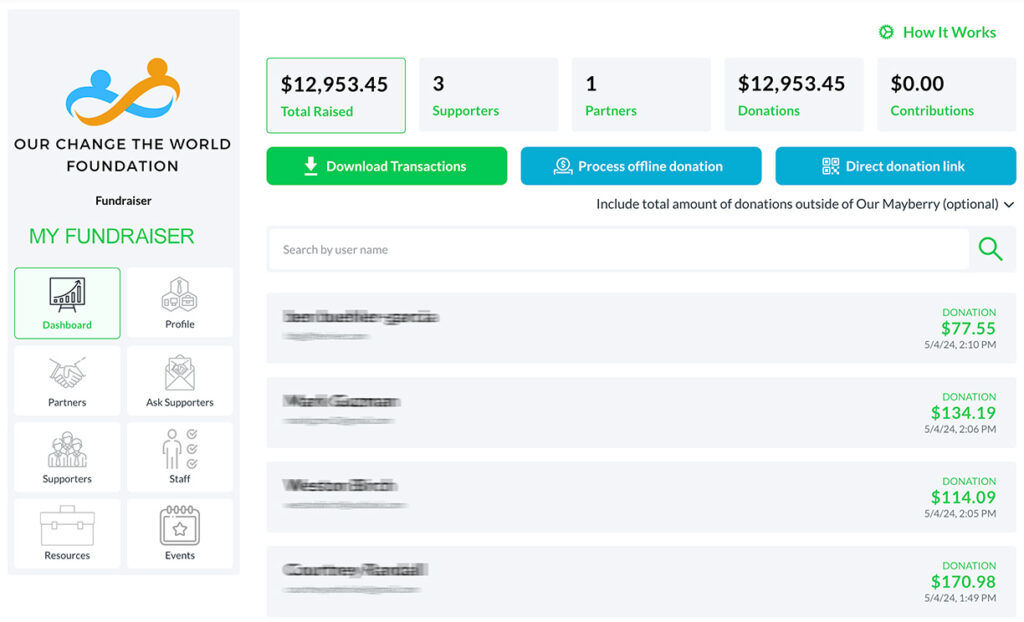
Campaign Admin Overview
1. Campaign Dashboard
By default, the campaign opens to the Campaign Dashboard, which provides a real-time overview of its progress.
At the top of the screen, you will see key campaign performance metrics, including:
- Total Raised – The combined total of Donations and Contributions.
- Number of Supporters – The total number of individuals who have donated or participated.
- Business Partners (If Enabled) – If the Impact Marketplace and Local Partnerships features are included, this metric shows how many businesses are actively participating.
- Total Donations – The total amount of tax-deductible direct donations from supporters.
- Total Contributions – If the Impact Marketplace is enabled, this shows the total funds received from purchases made in the eCommerce fundraising suite. (Note: Contributions are NOT tax-deductible; they are considered business expenses.)
2. Campaign Navigation Menu
On the left side of the screen, there is a navigation menu that allows you to manage different aspects of the campaign, including:
- Campaign Details – Update the campaign’s name, description, images, and fundraising goals.
- Fundraising Features – Add or manage tools such as event ticketing, team fundraising, donation forms, the Impact Marketplace, and gift cards.
- Supporter Engagement – View and manage donors, business partners, and fundraising teams.
- Financial Tracking – Review transactions, track donations, and monitor contributions.
3. Editing & Adjusting Campaign Features
While inside the Campaign Admin, users can:
- Modify campaign settings and content.
- Manage fundraising tools within the campaign.
- Track and review funds raised, including donations and contributions.
- Communicate with supporters and business partners.
- Duplicate fundraising features within the campaign as needed.
What You CANNOT Do in the Campaign Admin
- Approve or Deny Third-Party Campaign Requests – This is done at the Supporter Gateway level before a third-party campaign is active. Once inside the Campaign Admin, you are only managing an existing campaign.
- Access Other Campaigns – The Campaign Admin is specific to the campaign you opened. To manage another campaign, return to the Supporter Gateway and select a different campaign.
The Campaign Admin provides full control over the details and fundraising activities of an individual campaign, ensuring it runs effectively and meets its goals.