
💳 POS Connect
Turn everyday sales from your Square POS into community impact — automatically, seamlessly, and on your schedule.
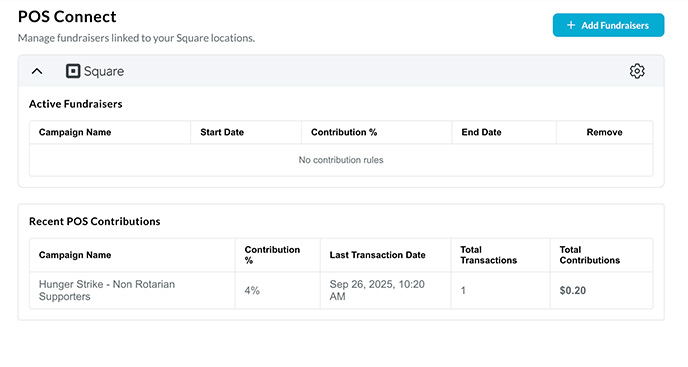
POS Connect is Our Mayberry’s integration with popular in-store POS systems, starting with Square (Clover is coming soon).
Unlike other Our Mayberry payment features, POS Connect does not require a ProPay merchant account because your normal POS handles the transactions.
Instead, POS Connect tracks your eligible POS sales during fundraising periods you define — and then invoices your business for the contribution amount. This method is simple, flexible, and fully transparent for your business and the nonprofits you support.
1. What POS Connect Does
POS Connect allows your business to:
✔ Connect your Square POS to Our Mayberry
Securely authorize your Square account so transaction data can sync.
✔ Schedule fundraising periods
Choose exactly when you want your in-store POS sales to generate contributions.
Examples:
- “Every Friday in November”
- “During our Customer Appreciation Weekend”
- “The first week of every month”
- “Thanksgiving week only”
✔ Choose contribution percentages
Set how much of your POS sales you want to contribute during each campaign window.
✔ Automatically track POS transactions
All eligible sales conducted in your Square POS are synced and counted.
✔ View real-time reports on sales and contributions
Nonprofits and fundraisers see the same data — ensuring full transparency.
✔ Receive a monthly invoice from Our Mayberry
Instead of processing donations in real time, POS Connect totals your contributions and bills your business afterward.
This is the only Our Mayberry payment method where:
- The business keeps 100% of the POS revenue
- Contributions are paid later via invoice
Yet it remains fully transparent and auditable for all parties.
2. The POS Connect Selection Screen
When you first open POS Connect, you’ll see a welcome page with options to choose the POS system you use:
- Square
- Clover (coming soon)
You simply click your provider and begin the secure authorization process.
The screen also reminds you:
“You can disconnect anytime in Settings.”
3. Connecting Your Square POS
After clicking Square, POS Connect:
- Redirects you to Square’s secure login page
- Asks you to authorize Our Mayberry to read transaction data
- Completes the connection
- Returns you to POS Connect inside Our Mayberry
No technical setup. No plugins. No API keys.
Once connected:
- Your Square locations appear in the POS Connect panel
- You can begin creating fundraising periods immediately
4. Creating a Fundraising Campaign (Contribution Rule)
In the POS Connect panel, click + Add Fundraisers.
This opens the Add Fundraiser window, which includes:
Fundraiser
Choose the nonprofit, Rotary club, district, or cause you want to support.
Start Date & Time
Choose when you want contributions to begin.
End Date & Time
Choose when the fundraising window ends.
Contribution (%)
Enter the percentage of POS sales you want to contribute during that period.
Examples:
- 2% of all sales during Hunger Strike
- 5% on Black Friday weekend
- 10% during your anniversary celebration
- 1% every Saturday
Once saved, the fundraiser appears in Active Fundraisers.
5. How POS Connect Tracks Contributions
During an active fundraising period:
✔ Your business continues using your Square POS as usual
Nothing changes at the register.
✔ Square sends transaction data to Our Mayberry
This happens securely and automatically.
✔ Our Mayberry calculates contributions
Based on:
- Your POS sales
- Your contribution percentage
- Your fundraiser schedule
✔ Transactions appear in POS Connect under “Recent POS Contributions”
Each row includes:
- Campaign name
- Contribution percentage
- Last transaction date
- Number of transactions
- Total contributions generated
Everything is transparent to:
- You
- The fundraiser
- Customers
6. How Billing Works
At the end of your fundraising period:
- Our Mayberry totals the contribution amount owed
- An invoice is generated and sent to your business
- Your nonprofit sees the contribution recorded for them
This method is especially ideal for:
- Restaurants
- Retail shops
- Bars
- Service providers using Square
- Businesses with high in-store sales volume
Because it avoids interfering with your existing POS workflow.
7. Managing and Ending Fundraisers
Inside POS Connect, you can:
✔ View all active fundraising periods
These show:
- Campaign name
- Start date
- End date
- Contribution percentage
✔ Remove an active fundraiser
Click Remove to end a fundraiser early.
✔ Review recent contributions
You can monitor impact in near-real time.
✔ Adjust future fundraising schedules
Create new rules whenever you like.
8. Why POS Connect Matters
POS Connect gives your business:
✔ A frictionless way to support causes
✔ Full control over dates and contribution amounts
✔ Zero disruption to your existing POS system
✔ Automatic contribution tracking
✔ Transparent reporting for all parties
✔ Invoicing instead of real-time deductions
✔ A modern way to run charity events or impact days
It’s ideal for businesses that want to give back while keeping their current POS workflow exactly as it is.